import-module activedirectory

foreach ($u in Get-ADGroupMember -Identity "Users")
{
  if(-not (Get-ADPrincipalGroupMembership $u| ?{$_.Name -eq "Domain Users"})){write-host $u " is missing from Domain Users"}

}
Showing posts with label scripting. Show all posts
Showing posts with label scripting. Show all posts
Monday, August 11, 2014
Powershell - check if members of a group are members of another group


Thursday, July 31, 2014
Poor man's IP to to Username, using Powershell & Domain Controller logs
This customer had many offices and needed to get rid of Windows XP machines.
Due to the lack of inventory and computer management, we were unable to know who were the people behind them!
Ping and remote access were shut off from the host so we couldn't gather information via WMI.
But the LastLogonTimeStamp was being updated for these computers which led us to believe they were still in use.
The solution I came up with : if someone was still using these XP machines, they were authenticating against the domain controllers, and a "logon event" was created with the source ip and the username.
Once you load the quick and dirty function called "Get-UserName-for_PC-by-DC-events (silly name sorry), run these 2 commands to get some results
Import-module ActiveDirectory
Get-ADComputer -Filter {Enabled -eq $true -and operatingsystem -like '*xp*'} -Properties IPv4Address | %{Get-UserName-for-PC-by-DC-events -DCname "DC01" -Ip $_.IPv4Address}
7/31/2014 1:18:33 PM -- john.doe at this address --> 10.26.1.15 using Kerberos
A nice enhancement would be to query all domain controllers.
Finally, your mileage may vary depending on how big your security logs are, how often they rotate and how often these XP users log on (you could run a scheduled task)
Function Get-UserName-for-PC-by-DC-events
{
  param(
        [Parameter(Mandatory=$True)]
        [string]$DCname,
        [Parameter(Mandatory=$True)]
        [string]$Ip
       )
    $xpathfilter = 'Event[System[EventID=4624] and EventData[Data[@Name="IpAddress"]="'+$ip+'"]]'

    Foreach ($event in get-winevent -ComputerName $DCname -LogName Security -FilterXPath $xpathfilter -MaxEvents 1)
    {
        Write-host $event.TimeCreated " -- " $event.Properties[5].Value "at this address --> " $event.Properties[18].Value " using " $event.Properties[9].Value

    }
}
Wednesday, July 16, 2014
DCHP server migration from Debian to Windows Server 2008
My customer wanted to migrate DHCP server function from
Debian Wheezy 7.50 running ISC-DHCP to Windows Server 2008.
The task can broken in 6 parts
get this great AWK parser onto the Debian box https://gist.github.com/mattpascoe/4039747
make it executable
Import the parsed file to your Windows Server
have a look at it to remove errors.
Setup DHCP role on Windows Server
skipping this part as it's pretty self explanatory
Run script
You will need this Powershell module , referred to as "Microsoft.DHCP.Powershell.Admin.psm1" in the script. If Window Server is version 2012 R2 , I guess you can use the DHCP server cmdlets from Microsoft instead.
You will also need to make a Powershell module -which is a combination of this function and this function. Just add one function under the other and put the line "export-modulemember IsIpAddressInRange,Get-IPrange". This module is referred as "IPutil.psm1"
The task can broken in 6 parts
- parse dhcpd.conf on the DHCP server (Linux)
- import the parsed file to your *new* DHCP server
- setup DHCP role on *new*server
- run a script on the *new* DHCP server which creates scopes,pools and reservations (Windows) according to the parsed file.
- manually rename the scopes to "friendly" names
- manually set the server,scope and/or reservation options and scope lease times
get this great AWK parser onto the Debian box https://gist.github.com/mattpascoe/4039747
make it executable
chmod +x dhcpparse.awk
parse the file
cat /etc/dhcp/dhcpd.conf | dhcpparse.awk > dhcp-config.txt
Import the parsed file to your Windows Server
have a look at it to remove errors.
Setup DHCP role on Windows Server
skipping this part as it's pretty self explanatory
Run script
You will need this Powershell module , referred to as "Microsoft.DHCP.Powershell.Admin.psm1" in the script. If Window Server is version 2012 R2 , I guess you can use the DHCP server cmdlets from Microsoft instead.
You will also need to make a Powershell module -which is a combination of this function and this function. Just add one function under the other and put the line "export-modulemember IsIpAddressInRange,Get-IPrange". This module is referred as "IPutil.psm1"
Import-Module .\Microsoft.DHCP.Powershell.Admin.psm1

Import-Module .\IPutil.psm1


#Group by line types

$subnets = Select-String -Pattern 'subnet' -Path .\dhcp-config.txt |%{$_.Line}

$pools = Select-String -Pattern 'pool' -Path .\dhcp-config.txt | %{$_.Line}

$hosts = Select-string -Pattern ‘host’ -path  .\dhcp-config.txt |%{$_.Line}


#Create scopes

$scopes = $subnets |%{$l=$_.Split(','); New-DHCPScope -Server $env:COMPUTERNAME -Address $l[1] -SubnetMask $l[2] -Name $l[3]}


foreach ($scope in $scopes)

{

    # generate all the IP addresses in this scope

    $ips=Get-IPrange -ip $scope.Address -mask $scope.SubnetMask

    # Create pools

    Write-host "Creating pool(s) for " $scope.Address

    foreach ($line in $pools)

    {

        if($ips -contains $line.split(',')[1])

        {

            Add-DhcpIPRange -scope $scope -startaddress $line.split(',')[1] -endaddress $line.split(',')[2]

        }

    }

    # Create reservations

    Write-host "Creating reservation(s) for " $scope.Address

    foreach ($line in $hosts)

    {

        if($ips -contains $line.split(',')[1])

        {

            New-DHCPReservation -scope $scope -IPAddress $line.split(',')[1] -MACAddress $line.split(',')[2] -Description $line.split(',')[4]

        }

    }

}

Write-host “You should now rename the scopes to friendly names”

Write-host “You should manually set options and lease times"
Thursday, December 1, 2011
PowerShell - count folders in folders
Counting the number of files in a directory is easy
The problem
An invoice scanning system uploads files to a file server. The directory structure is the following.
\\server\files\<country_code-invoices>\<date>\<invoice_id></invoice_id></date></country_code-invoices>
Here's an German invoice folder scanned on December 1st 2011
\\server\files\DE-invoices\2011-12-01\2ad52000-32d5-4d72-925a-98ac442d2381
The question is : "How many invoices have been created every day by country ?" . The output has to be a table to be analyzed with Excel.
The proposed solution
Get all the country folders
Now it's getting a bit tricky.We'll put a pipeline inside a pipeline!
Because we need to process each date folder in each country folder.
Display the country name and the date folder
DE-invoices 2011-12-01
DE-invoices 2011-11-30
etc..
Display the folder count
outputs
DE-invoices 2011-12-01 5
DE-invoices 2011-11-30 18
etc..
The result can now be imported as CSV file ,using the space character as the separator.
(dir).CountHere's a more complex example that I will break down, like a tutorial. Unlike the previous example, this is taking advantage of the object oriented nature of PowerShell. You should understand about_pipelines before you continue reading
The problem
An invoice scanning system uploads files to a file server. The directory structure is the following.
\\server\files\<country_code-invoices>\<date>\<invoice_id></invoice_id></date></country_code-invoices>
Here's an German invoice folder scanned on December 1st 2011
\\server\files\DE-invoices\2011-12-01\2ad52000-32d5-4d72-925a-98ac442d2381
The question is : "How many invoices have been created every day by country ?" . The output has to be a table to be analyzed with Excel.
The proposed solution
Get all the country folders
dir \\server\files\*-invoicesFor each (% is the operator) country folder ($_ is the pipeline object), display only its name
dir \\server\files\*-invoices | %{$_.Name}
#
Display the date folders for each countrydir \\server\files\*-invoices | %{dir $_}
#
We'll store the country name in $country, to use it later as we bring it up the pipeline.dir \\server\files\*-invoices | %{$country=$_.Name}
#
Now it's getting a bit tricky.We'll put a pipeline inside a pipeline!
Because we need to process each date folder in each country folder.
- For Each country folder display its name
- For Each date folder in a country folder display its name
- For Each date folder, count the number of folders it contains
Display the country name and the date folder
dir \\server\files\*-invoices | %{$country=$_.Name;dir $_ |%{Write-Host $country $_.Name}}
#
outputsDE-invoices 2011-12-01
DE-invoices 2011-11-30
etc..
Display the folder count
dir \\server\files\*-invoices | %{$country=$_.Name;dir $_ |%{Write-Host $country $_.Name (dir $_).count}}
#
outputs
DE-invoices 2011-12-01 5
DE-invoices 2011-11-30 18
etc..
The result can now be imported as CSV file ,using the space character as the separator.
Tuesday, January 4, 2011
SCCM Package replication status gadget for Windows 7 Sidebar
Making sure your packages are replicating correctly in your SMS hierarchy is important.
Sometimes, you even want to know as soon as possible when a package has been replicated!
This has been useful when a new office is being build far away, and I want to inform the fields technicians on site when they'll be allowed to push out software.
Therefore, I present the "PackageStatusDetailSummarizer" gadget for Windows 7 Sidebar!
>>DOWNLOAD<<
It's like the "Package Status" view in the "Configuration Manager Console", just neater in a gadget :-)

Inspiration from
To install in Windows 7:
If you want to customize it,just close the gadget and edit the files in the folder you have copied (see the "Windows Sidebar" link)
The possibilites are endless : check the deployment of packages,advertisements, software updates, site health etc..
Sometimes, you even want to know as soon as possible when a package has been replicated!
This has been useful when a new office is being build far away, and I want to inform the fields technicians on site when they'll be allowed to push out software.
Therefore, I present the "PackageStatusDetailSummarizer" gadget for Windows 7 Sidebar!
>>DOWNLOAD<<
It's like the "Package Status" view in the "Configuration Manager Console", just neater in a gadget :-)

Inspiration from
- "Software Updates" gadget of the Configuration Manager SDK Samples
- The WMI class SMS_PackageStatusDetailSummarizer from the SMS SDK
- Windows Sidebar
- Windows Sidebar Object Reference
To install in Windows 7:
- drop the folder "PackageStatusDetailSummarizer.Gadget" in %userprofile%\appdata\Local\Microsoft\Windows Sidebar
- right click on your desktop, choose "Gadgets", you should see it in the list
- right click, "install"
- configure by setting the options, just like a normal gadget
- Be careful with the refresh interval in the options, if you set it to low you can hurt your site's performance.

If you want to customize it,just close the gadget and edit the files in the folder you have copied (see the "Windows Sidebar" link)
The possibilites are endless : check the deployment of packages,advertisements, software updates, site health etc..
Tuesday, September 14, 2010
SCCM : converting programs to Windows 7
This is a VBS program I wrote for a customer, who has a SCCM 2007 R2 environment.
They had over 400 programs in various packages, and they weren't sure if all of them would run under Windows 7.
Visually, we had to make sure this box was ticked.
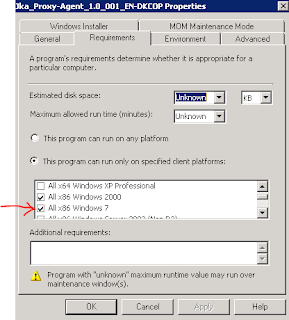
They had over 400 programs in various packages, and they weren't sure if all of them would run under Windows 7.

After a little digging in the SCCM SDK (link), and a script from Stuart James, the following will go through ALL programs in ALL packages. If a program is not set to "Run on all platforms", we add that it can run on "All x86 Windows 7"
It outputs changes with comma separated values (csv) so you can send this to a file and dress it up nice in Excel for your boss :-)
'=====================================
'SetRunFromTS - Sets all programs to be able to run in Windows 7 x86
'Author: Patrick Paumier / Stuart James
'
'Requirements: Change line 22 to connect to your site server
'
'Usage: CScript xxx.vbs or double click
'=====================================


'Check we're using CScript and if not then relaunch
If "CSCRIPT.EXE" <> UCase(Right(WScript.Fullname, 11)) Then
Set WshShell = WScript.CreateObject("WScript.Shell")
WshShell.Run "CSCRIPT.EXE /nologo " & WScript.ScriptFullName
Wscript.Quit
End If

' Setup a connection to the local provider.
Set swbemLocator = CreateObject("WbemScripting.SWbemLocator")
Set swbemServices= swbemLocator.ConnectServer("MY-SCCM-SERVER", "root\sms")
Set providerLoc = swbemServices.InstancesOf("SMS_ProviderLocation")

For Each Location In providerLoc
If location.ProviderForLocalSite = True Then
Set swbemServices = swbemLocator.ConnectServer(Location.Machine, "root\sms\site_" + Location.SiteCode)
Exit For
End If
Next

'Main call
QueryPrograms swbemServices

Sub QueryPrograms(connection)

On Error Resume next

Dim programs
'Dim program
' Run the query.
Set programs = connection.ExecQuery("Select * From SMS_Program WHERE PackageID='TDE0024F'")

If Err.Number<>0 Then
Wscript.Echo "Couldn't get programs"
Wscript.Quit
End If
For Each program In programs
ModifyProgram connection,program.PackageID, program.ProgramName
Next
If programs.Count=0 Then
Wscript.Echo "No packages found"
End If

End Sub

Sub ModifyProgram (connection, existingPackageID, existingProgramName)

' Build a query to get the specified package.
packageQuery = "SMS_Package.PackageID='" & existingPackageID & "'"

' Run the query to get the package.
Set package = connection.Get(packageQuery)
' Output package name and ID.
wscript.echo VBCrLf 'New Line
Wscript.StdOut.Write package.PackageID & "," 'Package ID
Wscript.StdOut.Write package.Name & "," 'Package Name
' Build a query to get the programs for the package.
programQuery = "SELECT * FROM SMS_Program WHERE PackageID='" & existingPackageID & "'"
' Run the query to get the programs.
Set allProgramsForPackage = connection.ExecQuery(programQuery, , wbemFlagForwardOnly Or wbemFlagReturnImmediately)
'The query returns a collection of program objects that needs to be enumerated.
For Each program In allProgramsForPackage
If program.ProgramName = existingProgramName Then
'Get all program object properties (in this case we specifically need some lazy properties).
programPath = program.Put_
Set program = connection.Get(programPath)

' Output the program name
Wscript.StdOut.Write program.ProgramName & "," ' Program Name
Wscript.StdOut.Write program.ProgramFlags & "," 'Program Flags

If program.ProgramFlags AND 2^27 Then
Wscript.StdOut.Write "OK for all platforms"
Else
' RUN_ON_SPECIFIED_PLATFORMS is set.
Win7OK = FALSE
For Each myOS in program.SupportedOperatingSystems
osver = Left(myOS.MinVersion,3)
If osver="6.1" And myOS.Platform="I386" Then
Wscript.StdOut.Write "OK for Windows 7" ' Name: " & myOS.Name & " MinVersion: "& myOS.MinVersion & " MaxVersion: " & myOS.MaxVersion & " Platform: " & myOS.Platform
Win7OK = TRUE
Exit For
End If
Next
If Win7OK = FALSE Then
'Add Windows 7 32bit platform
' Create
Set tempSupportedPlatform = connection.Get("SMS_OS_Details").SpawnInstance_
' Populate tempSupportedPlatform values.
tempSupportedPlatform.MaxVersion = "6.10.9999.9999"
tempSupportedPlatform.MinVersion = "6.10.0000.0"
tempSupportedPlatform.Name       = "Win NT"
tempSupportedPlatform.Platform   = "I386"

' Get the array of supported operating systems.
tempSupportedPlatformsArray = program.SupportedOperatingSystems

' Add the new supported platform values (object) to the temporary array.
ReDim Preserve tempSupportedPlatformsArray (Ubound(tempSupportedPlatformsArray) + 1)
Set tempSupportedPlatformsArray(Ubound(tempSupportedPlatformsArray)) = tempSupportedPlatform

' Replace the SupportedOperatingSystems object array with the new updated array.
program.SupportedOperatingSystems = tempSupportedPlatformsArray

' Save the program.
program.Put_

' Output success message.

Wscript.StdOut.Write "Added Win7"
End If
End If
End If
Next
End Sub
Wednesday, January 27, 2010
As part of a job interview, I was asked to program a VB script.
The goal was to:
"Disable LAN,WAN,Bluetooth devices as soon as any user (except shopAdmin) makes a login to the Computer (VB).
Hint this is only possible with the extra software piece called Devcon"
How do I start?
In this case, the "hint" meant that since a command line program would be used, some string parsing would be involved. A few Google searches turned up some ideas but nothing as complete as what was requested.
The goal was to:
"Disable LAN,WAN,Bluetooth devices as soon as any user (except shopAdmin) makes a login to the Computer (VB).
Hint this is only possible with the extra software piece called Devcon"
How do I start?
- search on the internet to see if someone else did it. If I judge it's well done, why reinvent what has already been invented?
- search in my scripts if I've already done it or part of it. Most likely, I will reuse generic scripts I made.
In this case, the "hint" meant that since a command line program would be used, some string parsing would be involved. A few Google searches turned up some ideas but nothing as complete as what was requested.
'Assuming devcon is the WINDOWS folder
'Assuming the logged on user has the right to disable devices.

LANadapter = "Broadcom Loca Network Adapter"
BTadapter = "BT adapter"
WLANadapter = "Dell Wireless 1470 Dual Band WLAN Mini-PCI Card"

Set objShell = WScript.CreateObject("WScript.Shell")

Set objNet = CreateObject("WScript.NetWork")

If Not objNet.UserName = "shopAdmin" Then
Set objExecObject = objShell.Exec("cmd /c devcon listclass Net")

Do While Not objExecObject.StdOut.AtEndOfStream

strText = objExecObject.StdOut.ReadLine()

If Instr(strText,LANadapter)>0 Then
ID = Split(strText,"\",3)
Set objExecObject = objShell.Exec("cmd /c devcon.exe disable " & ID(0) & "\" & ID(1) )
WScript.Echo "LAN disabled"

ElseIf Instr(strText,BTadapter )>0 Then
ID = Split(strText,"\",3)
Set objExecObject = objShell.Exec("cmd /c devcon.exe disable " & ID(0) & "\" & ID(1) )
WScript.Echo "Bluetooth disabled"

ElseIf Instr(strText,WLANadapter)>0 Then
ID = Split(strText,"\",3)
Set objExecObject = objShell.Exec("cmd /c devcon.exe disable " & ID(0) & "\" & ID(1) )
WScript.Echo "WLAN disabled"
End If

Loop
End If
Subscribe to:
Posts (Atom)